In first previous steps of this quick start, you created a Windows Phone application containing a C1Reflector control, added content to the C1Reflector control, and modified the appearance of the C1Reflector control. In this step, you will run the project and observe the results.
Complete the following steps:
1. From the Debug menu, select Start Debugging to view you application in the Windows Phone emulator.
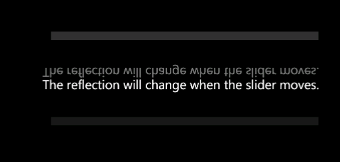
The application appears similar to the following:
2. Select a point on the Slider control. Observe that there is a real-time reflection of each change that you make.
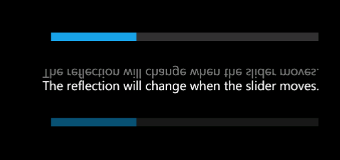
This is a result of the C1Reflector control's automatic updating feature.
Congratulations! You have successfully completed the Reflector for Windows Phone quick start. In this quick start, you've created a Reflector for Windows Phone application, added content to the C1Reflector control, customized the C1Reflector control's appearance, and viewed some of the run-time capabilities of the C1Reflector control.