You can get or set a CSS class name to add to the controls drop-down element. The property is useful when you are styling the drop-down element, because it is shown as a child of the document body rather than as a child of the control itself, which prevents using CSS selectors based on the parent control. You can use this property to display multiple columns in a ComboBox dropdown.
The following code example demonstrates how to enable multi-column using DropDownCssClass property. This example uses the sample created in the Quick Start section.
DropDownCssClass property is available in the following Input DropDown controls;
- InputColor
- InputDate
- AutoComplete, ComboBox
- InputTime
- MultiSelect
- Menu
The following image shows how the Menu appears after applying the DropDownCssClass property: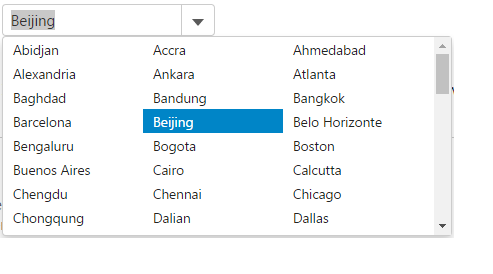
The following code example demonstrates how to use DropDownCssClass property.
IndexController.cs
| Razor |
Copy Code
|
|---|---|
public ActionResult Index() { ViewBag.Cities = Models.Cities.GetCities(); return View(); } |
|
ComboBox.cshtml
| Razor |
Copy Code
|
|---|---|
<style>
    .multi-column
    {   display: flex;
        flex-wrap: wrap;
        max-width: 450px;
    }
</style>
@{ List<string> cities = ViewBag.Cities;}
@Html.C1().ComboBox().Bind(cities).SelectedIndex(0).IsEditable(false).DropDownCssClass("multi-column")
|
|
| Razor |
Copy Code
|
|---|---|
<style>
    .multi-column
    {   display: flex;
        flex-wrap: wrap;
        max-width: 450px;
    }
</style>
@{ List<string> cities = ViewBag.Cities;}
   <c1-combo-box selected-index="0" is-editable="false" drop-down-css-class="multi-column">
    <c1-items-source source-collection="cities"></c1-items-source>
</c1-combo-box>
|
|