The C1NavPanel
control includes a smart tag ( ) in Visual
Studio. A smart tag represents a short-cut tasks menu that provides the most
commonly used properties in C1NavPanel.
) in Visual
Studio. A smart tag represents a short-cut tasks menu that provides the most
commonly used properties in C1NavPanel.
The C1NavPanel control provides quick and easy access to the Navigation Pane Designer Form and common properties through its smart tag.
To access the C1NavPanel Tasks menu, click the smart tag in the upper-right corner of the C1NavPanel control.
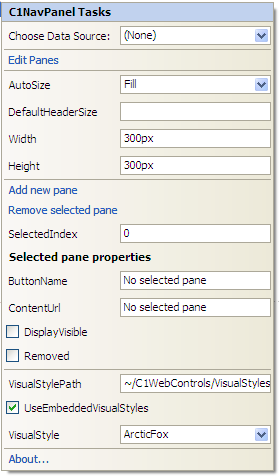
The C1NavPanel Tasks menu operates as follows:
• Choose Data Source
Clicking the drop-down arrow in the Choose Data Source box opens a list of available data sources and allows you to add a new data source. To add a new data source to the project, click <New data source> to open the Data Source Configuration Wizard.
• Edit Panes
Clicking Edit Panes opens the Navigation Pane Designer Form, where panes can be added, removed, and reordered. You can preview the C1NavPanel here, as well as set a variety of properties defining the appearance, behavior, and more for each C1NavPanelPane.
• AutoSize
The AutoSize property determines the width and height of the content area of the C1NavPanelPanes. If set to None (default), then the content area will increase as necessary to fit the pane's contents. If set to Fill, then the content area size will always be equal to its height and width for horizontal orientation.
• DefaultHeaderSize
This property determines the size of the C1NavPanelPane.
• Width
Set this property to determine the width of the C1NavPanel control.
• Height
Set this property to determine the height of the C1NavPanel control.
• Add new pane
Clicking Add new pane simply adds an additional C1NavPanelPane to the C1NavPanel control.
• Remove selected pane
Clicking Remove selected pane deletes the currently selected C1NavPanelPane in the C1NavPanel control.
• SelectedIndex
Set this property to determine the C1NavPanelPane to be initially displayed.
• ButtonName
Set this property to determine the name for the selected C1NavPanelPane.
• ContentUrl
Set this property to the URL of the Web site you wish to display or provide your own .htm file to display formatted content, links, images, and so on.
• DisplayVisible
Unchecking the DisplayVisible checkbox hides the currently selected C1NavPanelPane.
• VisualStylePath
The VisualStylePath property specifies the location of the visual styles used for the control. The default value for VisualStylePath property is ~/C1WebControls/VisualStyles.If you create a custom style, add it to this location ~/VisualStyles/StyleName/C1NavPanel/styles.css, set the VisualStylePath property to ~/VisualStyles, and set the VisualStyle property to StyleName (assuming that StyleName is the name used to define the style in the style.css file). Uncheck the UseEmbeddedVisualStyles property.
• UseEmbeddedVisualStyles
This checkbox is checked by default so that the visual styles embedded in C1.Web.UI.Controls.2.dll, such as ArcticFox and Vista, can be used. If you want to use your own custom styles, uncheck this checkbox and specify the location of your visual styles using the VisualStylePath property.
• VisualStyle
Clicking the VisualStyle drop-down arrow allows you to select from various built-in visual styles. See Using Built-in Visual Styles for more information.
• About
Displays the About ComponentOne NavPanel dialog box, which is helpful in finding the version number of the product and online resources such as how to purchase a license, how to contact ComponentOne, or view ComponentOne product forums.
|