In the following steps, you will use the Navigation Pane Designer Form to add images to the navigation pane and to add content to the C1NavPanelPanes.
1. In the Navigation Pane Designer Form, select Edit Panes. The Navigation Pane Designer Form appears.
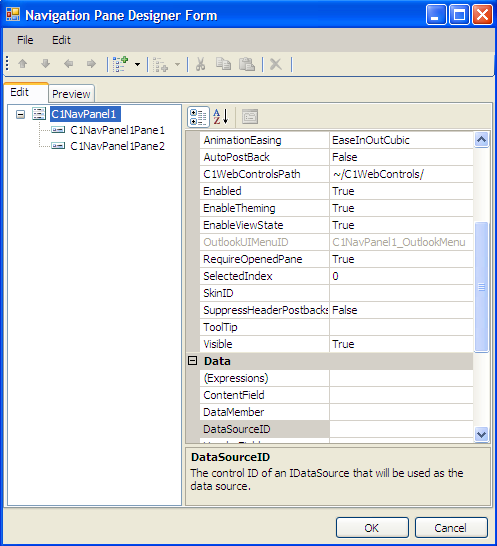
2. Select C1NavPanel1Pane1.
a. In the Behavior category, enter ComponentOne Web Site next to the ButtonName property.
b. In the Misc category, enter http://www.componentone.com next to the ContentUrl property.
c. In the Appearance category, click the ellipsis button next to the ButtonImageUrl property, select your first .gif (we are using the ComponentOne logo for this example), and click OK.
3. Select C1NavPanel1Pane2.
a. In the Misc category, enter Tasks.htm next to the ContentUrl property.
b. In the Appearance category, click the ellipsis button next to the ButtonImageUrl property, select your second .gif (we are using the Microsoft Outlook tasks image for this example), and click OK.
4. Click OK to close the Navigation Pane Designer Form.
5. Since you edited the Tasks pane last, it is still selected. Select the ComponentOne Web Site pane so that its contents will appear first in the content area of the C1NavPanel when the project runs.
|