Adding a C1RichTextBox to a Project
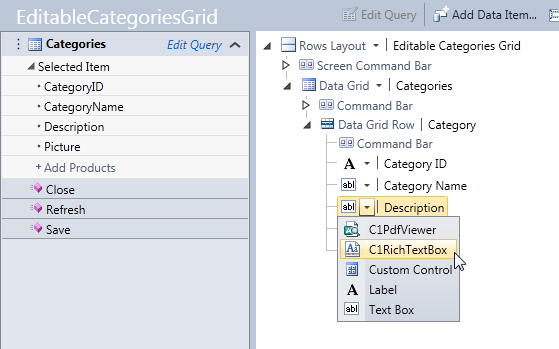
The C1RichTextBox extension can replace the default LightSwitch text box for any field.
To add a ComponentOne RichTextBox to your project, follow these steps:
1. In the LightSwitch Designer, choose the drop-down next to any row that uses the default Text Box.
2. Choose C1RichTextBox from the list.
Note: If you do not see the ComponentOne RichTextBox Screen option, make sure you have installed Studio for LightSwitch and included the extension in the project.
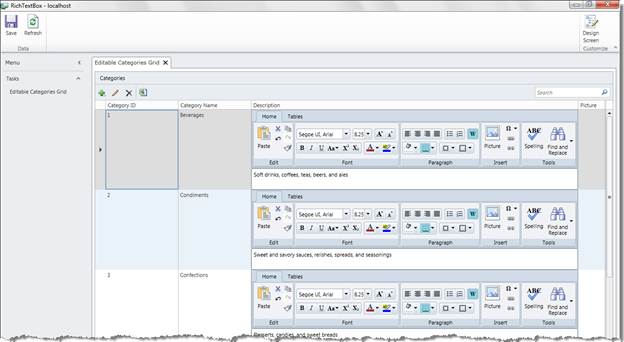
3. Run the project.
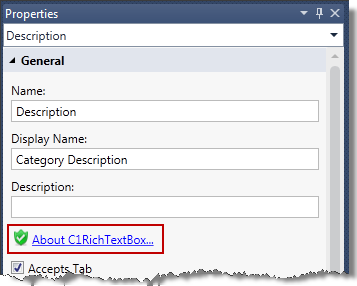
Please note: Even if you activate your license during installation, the first time you run an application that includes C1RichTextBox, a reminder screen will appear. To prevent that from happening, open the LightSwitch screen designer, select the C1RichTextBox control in the Layout tree, and save the screen that uses C1RichTextBox. In the Properties window, you should see a green shield icon next to the About C1RichTextBox link. This indicates that C1RichTextBox is licensed. You need to do this for every screen that uses C1RichTextBox.