The following topics demonstrate the methods, good for general data entry tasks, of spell checking using the C1Spell class.
Showing a red sign
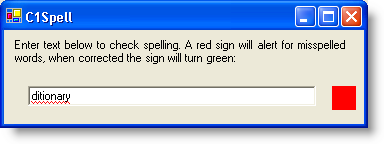
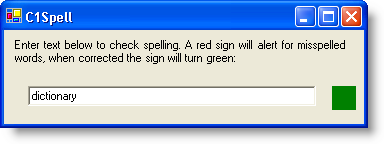
The following steps show how to use a red sign to signal misspelled words as you type. This topic uses the CheckTyping method and calls the TypingError event. Complete the following steps:
1. To connect the C1Spell component to the textbox control, double-click the form and enter the following code in the Form_Load event handler:
Me.C1Spell1.CheckTyping(Me.TextBox1)
• C#
this.c1Spell1.CheckTyping(this.textBox1);
2. To show a red sign for misspelled words call the TypingError event, and to show a green sign for correctly typed words call the TypingOK event. Add the following code:
Private Sub C1Spell1_TypingError(ByVal sender As System.Object, ByVal e As C1.Win.C1Spell.TypingErrorEventArgs) Handles C1Spell1.TypingError
' show red light to indicate an error was detected
Panel1.BackColor = Color.Red
End Sub
Private Sub C1Spell1_TypingOK(ByVal sender As System.Object, ByVal e As C1.Win.C1Spell.TypingOKEventArgs) Handles C1Spell1.TypingOK
' typed something right? Use green color.
Panel1.BackColor = Color.Green
End Sub
• C#
private void c1Spell1_TypingError(object sender, C1.Win.C1Spell.TypingErrorEventArgs e)
{
// show red light to indicate an error was detected
this.panel1.BackColor = Color.Red;
}
private void c1Spell1_TypingOK(object sender, C1.Win.C1Spell.TypingOKEventArgs e)
{
// typed something right? Use green color.
this.panel1.BackColor = Color.Green;
}
This topic illustrates the following:
Here is what each form should look when an incorrect word or correct word is typed, respectfully.
Creating a pop-up menu
To provide as-you-type spell checking using the pop-up menu, complete the following steps:
1. Place a C1Spell component and ContextMenuStrip control on the form.

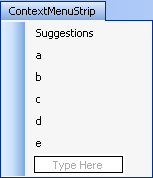
2. From the component tray, select the ContextMenuStrip control to view the control on the form. Place your cursor over "Type Here" and enter the following menu items:
3. Note that the default property for TypingErrorAction property is BeepandUnderline. You may choose a different action for the TypingErrorAction property, see the TypingErrorActionEnum enumeration members.
4. To connect the C1Spell component to the textbox control, double-click the form and enter the following code in the Form_Load event handler:
Me.C1Spell1.CheckTyping(Me.TextBox1)
• C#
this.c1Spell1.CheckTyping(this.textBox1);
5. To call the TypingError event, enter the following code:
Private Sub C1Spell1_TypingError(ByVal sender As System.Object, ByVal e As C1.Win.C1Spell.TypingErrorEventArgs) Handles C1Spell1.TypingError
C1Spell1.TypingErrorAction = C1.Win.C1Spell.TypingErrorActionEnum.Underline
' use CheckString method to build a list of suggestions
C1Spell1.CheckString(e.ErrWord, C1.Win.C1Spell.BadWordDialogEnum.NoDialog)
' if no suggestions, just quit
If C1Spell1.Suggestions.Count = 0 Then Exit Sub
' now select the word
TextBox1.Select(e.SelStart, e.SelLength)
End Sub
• C#
private void c1Spell1_TypingError(object sender, C1.Win.C1Spell.TypingErrorEventArgs e)
{
this.c1Spell1.TypingErrorAction = C1.Win.C1Spell.TypingErrorActionEnum.Underline;
// use CheckString method to build a list of suggestions
this.c1Spell1.CheckString(e.ErrWord, C1.Win.C1Spell.BadWordDialogEnum.NoDialog);
// if no suggestions, just quit
if (this.c1Spell1.Suggestions.Count == 0)
return;
// now select the word
textBox1.Select((int)e.SelStart, (int)e.SelLength);
}
6. To create a context menu that includes more than one spelling suggestion, use the following code:
' build the context menu if there are at least two suggestions
' and put the suggestion words as the menu texts
Dim i As Integer
For i = 1 To 5
Me.ContextMenuStrip1.Items(i).Visible = False
Next
Me.ContextMenuStrip1.Items(0).Text = e.ErrWord & " (not in dictionary)"
For i = 1 To 5
If i > 5 Then Exit For
If C1Spell1.Suggestions.Count < i Then Exit For
Me.ContextMenuStrip1.Items(i).Text = C1Spell1.Suggestions(i - 1)
Me.ContextMenuStrip1.Items(i).Visible = True
Next
' Show the context menu at the current caret position
' note that the caret position is the screen position and it
' should be transferred to the client position for each textbox
Dim pos As Point
Dim x, y
x = C1Spell1.CaretPosX
y = C1Spell1.CaretPosY
pos = New Point(x, y)
pos = TextBox1.PointToClient(pos)
Me.ContextMenuStrip1.Show(TextBox1, pos)
• C#
// build the context menu if there are at least two suggestions
// and put the suggestion words as the menu texts
for(int i = 1; i <= 5; i++)
this.contextMenuStrip1.Items[i].Visible = false;
this.contextMenuStrip1.Items[0].Text = e.ErrWord + " (not in dictionary)";
for( int i = 1; i <= 5; i++)
{
if (this.c1Spell1.Suggestions.Count < i)
break;
this.contextMenuStrip1.Items[i].Text = this.c1Spell1.Suggestions[i-1];
this.contextMenuStrip1.Items[i].Visible = true;
}
// Show the context menu at the current caret position
// note that the caret position is the screen position and it
// should be transferred to the client position for each textbox
Point pos = new Point((int)this.c1Spell1.CaretPosX, (int)this.c1Spell1.CaretPosY);
pos = this.textBox1.PointToClient(pos);
this.contextMenuStrip1.Show(this.textBox1, pos);
7. The following code selects the error word and replaces it with the correctly spelled menu item chosen by the user:
' this sub routine will select the error word
Private Sub SetSelection(ByVal start As Integer, ByVal length As Integer)
TextBox1.Select(start, length)
End Sub
Private Sub menuItem_Click(ByVal sender As System.Object, ByVal e As System.EventArgs)
' ignore this word
Me.C1Spell1.IgnoreAllWord = True
End Sub
' this sub routine will change the error word to val
Private Sub ChangeText(ByVal val As String)
Me.TextBox1.SelectedText = val
End Sub
• C#
private void SetSelection(int start, int length)
{
textBox1.Select(start, length);
}
private void menuItem_Click(object sender, EventArgs e)
{
// ignore this word
this.c1Spell1.IgnoreAllWord = true;
}
// this sub routine will change the error word to val
private void ChangeText(string val)
{
this.textBox1.SelectedText = val;
}
This topic illustrates the following:
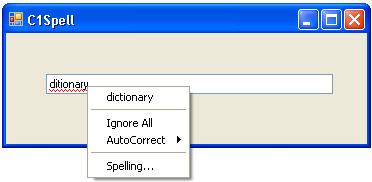
Type a word in the box. If it is misspelled, it will beep and underline. Right-click the word to view the spelling suggestions from the pop-up menu:
|