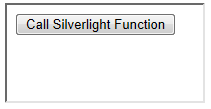
C1HtmlHost gives you the ability to host an ASPX page within the control. This allows you to call a Silverlight function through the Web page. This topic will take you through adding the C1HtmlHost control, an ASPX page, and a Silverlight function to your project using both XAML and Code Views.
Complete these steps:
1. Add a new WebForm to your web project and call it WebForm1.aspx. Locate the <div> tags on the page and add the following markup to create the input button that will call the Silverlight function:
<input type="button" id="btn1" onclick="CallSilverlightFunction()" value="Call Silverlight Function" />
2. Locate the <head> tags on the WebForm1.aspx page. Insert the following script between them to call the Silverlight function:
<script type="text/javascript">
function CallSilverlightFunction(sender, args) {
var parent = window.parent;
var sl = parent.document.getElementById("silverlightControl");
sl.Content.slObject.SilverlightFunction();
}
</script>
3. Switch to the XAML view of your project and add the following markup to create the C1HtmlHost control:
<c1:C1HtmlHost Height="100" HorizontalAlignment="Left" Margin="92,64,0,0" Name="c1HtmlHost1" VerticalAlignment="Top" Width="200" />
4. Now navigate to the Code View by right-clicking on the page and selecting View Code from the menu. Add the following statements to the top of the page:
Imports System.Windows.Browser
Imports C1.Silverlight.Extended
•C#
using System.Windows.Browser;
using C1.Silverlight.Extended;
5. Add the following code below the InitializeComponent() method. This will set the WebForm you added as the source for the C1HtmlHost control.
c1HtmlHost1.SourceUri = New Uri("WebForm1.aspx", UriKind.Relative)
•C#
c1HtmlHost1.SourceUri = new Uri("WebForm1.aspx", UriKind.Relative);
6. Next, we will declare the Silverlight Function we wish to call as a scriptable member to make it accessible outside Silverlight.
<ScriptableMember()> _
Public Sub SilverlightFunction()
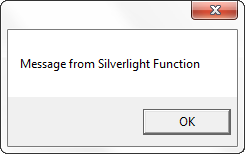
MessageBox.Show("Message from Silverlight Function")
End Sub
•C#
[ScriptableMember]
public void SilverlightFunction()
{
MessageBox.Show("Message from Silverlight Function");
7. From the Solution Explorer, open your App.xaml.cs file to add the following code in place of the Application Startup event:
Private Sub Application_Startup(ByVal sender As Object, ByVal e As StartupEventArgs)
Dim newMainPage As MainPage = New MainPage
Me.RootVisual = newMainPage
HtmlPage.RegisterScriptableObject("slObject", newMainPage)
End Sub
•C#
private void Application_Startup(object sender, StartupEventArgs e)
{
MainPage newMainPage = new MainPage();
this.RootVisual = newMainPage;
HtmlPage.RegisterScriptableObject("slObject", newMainPage);
}
8. Locate the TestPage.aspx in the Solution Explorer in the web portion of your project. It will be labeled YourProjectNameTestPage.aspx. Locate the <object> tags on the page. Insert id="silverlightControl" in the tag so that the markup resembles the following:
<object id= "silverlightControl" data="data:application/x-silverlight-2," type="application/x-silverlight-2" width="100%" height="100%">
9. Check your <object> parameters to ensure that the windowless parameter is set to true as in the following markup:
<param name="windowless" value="true" />
10. Press F5 to run your application. The application should resemble the following image:
When you press the button, the following dialog box will appear:
 What You've Accomplished
You've added a C1HtmlHost control to the page, hosted an ASPX page within the C1HtmlHost control, and called a Silverlight function from within the control.