. This will ensure
that the height of the button control is the same height as the accordion pane's
content area.
. This will ensure
that the height of the button control is the same height as the accordion pane's
content area.Each accordion pane (C1AccordionItem) will accept one child control in its content area. In this topic, you will learn how to add a Silverlight button control in Blend, in XAML, and in code.
This topic assumes that you have added a C1Accordion control with at least one C1AccordionItem item to your project.
At Design Time in Blend
To add a Button control to the content area, complete the following steps:
1. Under the Objects and Timeline tab, select [C1AccordionItem].
2. Navigate to the Assets tab and click the Controls drop-down arrow.
3. Select All to open a list of all available Silverlight controls.
4. Double click the Button icon to add it to the accordion pane's content area.
5. Under the Objects and Timeline tab, select [Button] so that the Button control's properties take focus in the Properties panel.
6. Next to the Width
property, click the Set to Auto button . This will ensure
that the height of the button control is the same height as the accordion pane's
content area.
7. Next to the
Height property, click the Set to Auto button . This will ensure that the height of the
button control is the same height as the accordion pane's content area.
8. Run the program and expand the accordion pane.
In XAML
To add a Button control to the content area in XAML, complete the following:
1. Place the following markup between the <c1:C1AccordionItem> and </c1:C1AccordionItem> tags:
<Button Content="Button" Height="Auto" Width="Auto"/>
2. Run the program and expand the accordion pane
In Code
To add a Button control to the content area in code, complete the following:
1. Add x:Name="C1Accordion1" to the <c1:C1AccordionItem> tag so that the object will have a unique identifier for you to call in code.
2. Enter Code view and add the following code beneath the InitializeComponent() method:
'Create the Button control
Dim NewButton As New Button()
NewButton.Content = "Button"
'Set the Button Control's Width and Height properties
NewButton.Width = Double.NaN
NewButton.Height = Double.NaN
'Add the Button to the content area
C1AccordionItem1.Content = (NewButton)
•C#
//Create the Button control
Button NewButton = new Button();
NewButton.Content = "Button";
//Set the Button Control's Width and Height properties
NewButton.Width = double.NaN;
NewButton.Height = double.NaN;
//Add the Button to the content area
C1AccordionItem1.Content = (NewButton);
3. Run the program and expand the accordion pane.
 This Topic Illustrates the Following:
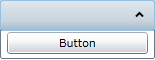
When accordion pane is expanded, the button control will appear in its content area, resembling the following image: