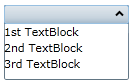
This Topic Illustrates the Following:
You cannot set the Content property to more than one control at a time. However, you can circumvent this issue by adding a panel-based control that can accept more than one control, such as a StackPanel control, to the content area of the C1Expander control. When you add multiple controls to the panel-based control, each one will appear within the C1Expander control's content area.
At Design Time in Blend
To add a control to the content area, complete the following steps:
1. Navigate to the Assets tab and expand the Controls node.
2. Select All to open a list of all available Silverlight controls.
3. Select the StackPanel icon and use a drag-and-drop operation to add it to the content area of the C1Expander control.
4. Under the Objects and Timeline tab, select StackPanel.
5. Under the Assets tab, double-click the TextBlock icon to add a TextBlock control to the StackPanel. Repeat this step twice to add a total of three TextBlock controls to the StackPanel.
6. Under the Objects and Timeline tab, select the first TextBlock control to reveal its properties in the Properties tab and then set its Text property to "1st TextBlock".
7. Under the Objects and Timeline tab, select the secondTextBlock control to reveal its properties in the Properties tab and then set its Text property to "2nd TextBlock".
8. Under the Objects and Timeline tab, select the third TextBlock control to reveal its properties in the Properties tab and then set its Text property to "1st TextBlock"
9. Run the program.
10. Expand the C1Expander control and observe that each of the three TextBlock controls appear in the content area.
In XAML
To add multiple controls to the content area, complete these steps:
1. Place the following XAML markup between the <c1:C1Expander> and </c1:C1Expander> tags:
<c1:C1Expander.Content>
<StackPanel>
<TextBlock Text="1st TextBlock"/>
<TextBlock Text="2nd TextBlock"/>
<TextBlock Text="3rd TextBlock"/>
</StackPanel>
</c1:C1Expander.Content>
2. Run the program.
3. Expand the C1Expander control and observe that each of the three TextBlock controls appear in the content area.
In Code
To add multiple controls to the content area, complete these steps:
1. Enter Code view and add the following code beneath the InitializeComponent() method:
'Create a stack panel and add it to C1Expander
Dim StackPanel1 As New StackPanel()
c1Expander1.Content = (StackPanel1)
'Create three TextBlock control and set their Text properties
Dim TextBlock1 As New TextBlock()
Dim TextBlock2 As New TextBlock()
Dim TextBlock3 As New TextBlock()
TextBlock1.Text = "1st TextBlock"
TextBlock2.Text = "2nd TextBlock"
TextBlock3.Text = "3rd TextBlock"
'Add TextBlock controls to StackPanel
StackPanel1.Children.Add(TextBlock1)
StackPanel1.Children.Add(TextBlock2)
StackPanel1.Children.Add(TextBlock3)
•C#
//Create a stack panel and add it to C1Expander
StackPanel StackPanel1 = new StackPanel();
c1Expander1.Content = (StackPanel1);
//Create three TextBlock control and set their Text properties
TextBlock TextBlock1 = new TextBlock();
TextBlock TextBlock2 = new TextBlock();
TextBlock TextBlock3 = new TextBlock();
TextBlock1.Text = "1st TextBlock";
TextBlock2.Text = "2nd TextBlock";
TextBlock3.Text = "3rd TextBlock";
//Add TextBlock controls to StackPanel
StackPanel1.Children.Add(TextBlock1);
StackPanel1.Children.Add(TextBlock2);
StackPanel1.Children.Add(TextBlock3);
2. Run the program.
3. Expand the C1Expander control and observe that each of the three TextBlock controls appear in the content area.
This Topic Illustrates the Following:
When the C1Expander control is expanded, three TextBlock controls will appear in the content area as follows: