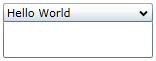
This Topic Illustrates the Following:
By default, the C1Expander control's header is empty. You can add text to the control's header by setting the Header property to a string in Blend, in XAML, or in code.
At Design Time in Blend
To set the Header property in Blend, complete the following steps:
1. Click the C1Expander control once to select it.
2. Under the Properties tab, set the Header property to a string (for example, "Hello World").
In XAML
To set the Header property in XAML, add Header="Hello World" to the <c1:C1Expander> tag so that it appears similar to the following:
<c1:C1Expander Header="Hello World" Width="150" Height="55">
In Code
To set the Header property in code, complete the following steps:
1. Add x:Name="C1Expander1" to the <c1:C1Expander> tag so that the control will have a unique identifier for you to call in code.
2. Enter Code view and add the following code beneath the InitializeComponent() method:
C1Expander1.Header = "Hello World"
•C#
C1Expander1.Header = "Hello World";
3. Run the program.
This Topic Illustrates the Following:
The header of the C1Expander control now reads "Hello World". The end result of this topic should resemble the following: