Now that you've created a Silverlight application and customized the application's appearance and behavior, the only thing left to do is run your application. To run your application and observe Book for Silverlight's run-time behavior, complete the following steps:
1. From the Project menu, select Run Project to view how your application will appear at run time.
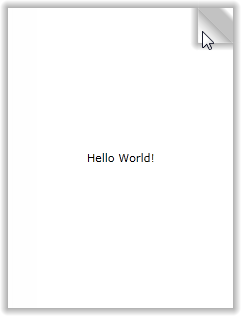
The application will appear similar to the following:
You set the IsFirstPageOnTheRight property so that only one page is initially visible. Notice that when you hover over the lower or upper-right corner of the C1Book control the page folds back slightly to prompt you to turn the page; see Book Zones for more information.
2. Click the upper-right corner of the page and notice that the page turns and the second and third pages are visible:
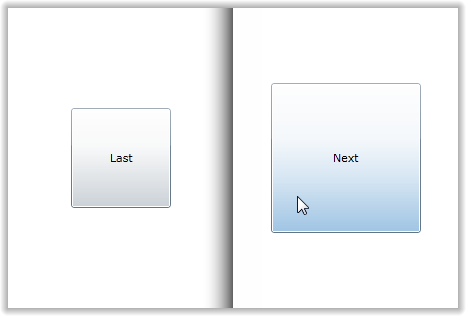
You customized the time it takes for the page to turn by setting the TurnInterval property.
3. Click the Next button. The next pages are displayed:
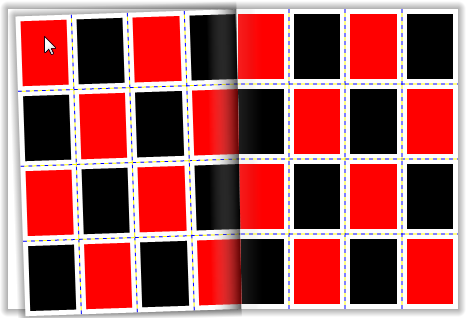
Note that you can return to the previous page by clicking the left top or bottom corner.
4. Click and drag the top-right page corner to the left to turn to the next page:
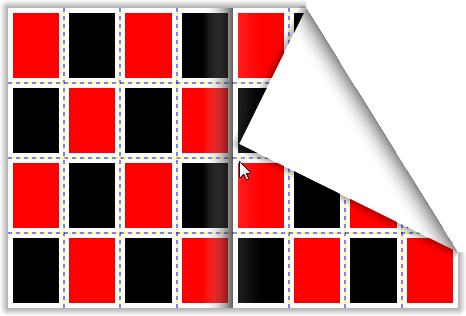
Notice that the last page contains the TextBlock content that was added in code:

Congratulations! You've completed the Book for Silverlight quick start and created a simpleSilverlight application, added and customized a Book for Silverlight control, and viewed some of the run-time capabilities of the control.