This Topic Illustrates the Following:
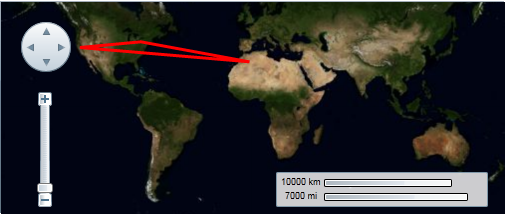
You can connect geographic coordinates with a polygon by adding a C1VectorPolygon to the C1VectorLayer (see Vector Layer for more information). In this topic, you will create a 3-point polygon using XAML and code.
In XAML
Complete the following steps:
1. Place the following XAML markup between the
<c1:C1Maps> and </c1:C1Maps> tags:
<c1:C1VectorLayer Margin="2,0,-2,0">
<c1:C1VectorPolygon Points="-80.15,42.12 -123.08,39.09, -3.90,30.85" StrokeThickness="3" Stroke="Red">
</c1:C1VectorPolygon>
</c1:C1VectorLayer>
2. Press F5 to run the project.
In Code
Complete the following steps:
1. In XAML view, add x:Name="C1Maps1" to the <c1:C1Maps> tag so that the object will have a unique identifier for you to call in code.
2. Enter Code view and import the following namespace:
Imports C1.Silverlight.C1Maps
•C#
using C1.Silverlight.C1Maps;
3. Add the following code beneath the InitializeComponent() method:
' Create layer and add it to the map
Dim C1VectorLayer1 As New C1VectorLayer()
C1Maps1.Layers.Add(C1VectorLayer1)
' Initial track
Dim pts As Point() = New Point() {New Point(-80.15, 42.12), New Point(-123.08, 39.09), New Point(-3.9, 30.85)}
' Create collection and fill it
Dim pcoll As New PointCollection()
For Each pt As Point In pts
pcoll.Add(pt)
Next
' Create a polygon and add it to the vector layer as a child
Dim C1VectorPolygon1 As New C1VectorPolygon()
C1VectorLayer1.Children.Add(C1VectorPolygon1)
' Points
C1VectorPolygon1.Points = pcoll
' Appearance
C1VectorPolygon1.Stroke = New SolidColorBrush(Colors.Red)
C1VectorPolygon1.StrokeThickness = 3
•C#
// Create layer and add it to the map
C1VectorLayer C1VectorLayer1 = new C1VectorLayer();
C1Maps1.Layers.Add(C1VectorLayer1);
// Initial track
Point[] pts = new Point[] { new Point(-80.15,42.12), new Point(-123.08,39.09),
new Point(-3.90,30.85)};
// Create collection and fill it
PointCollection pcoll = new PointCollection();
foreach( Point pt in pts)
pcoll.Add(pt);
// Create a polygon and add it to the vector layer as a child
C1VectorPolygon C1VectorPolygon1 = new C1VectorPolygon();
v1.Children.Add(C1VectorPolygon1);
// Points
C1VectorPolygon1.Points = pcoll;
// Appearance
C1VectorPolygon1.Stroke = new SolidColorBrush(Colors.Red);
C1VectorPolygon1.StrokeThickness = 3;
4. Press F5 to run the project.
This Topic Illustrates the Following:
The following image depicts a C1Maps control with three geographical coordinates connected by a polygon.