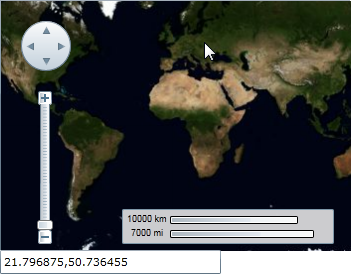
In this topic, you will add code to your project that will return the geographical coordinates of the current mouse position. These geographical coordinates will then be written as a string to the Text property of a TextBox control.
Complete the following steps:
1. Add a StackPanel, a TextBox control, and a C1Maps control to your project.
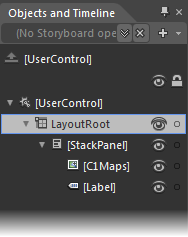
2. In the Objects and Timeline panel, rearrange the controls so they appears as follows:
3. Set the StackPanel's properties as follows:
•Locate the Width property and click its glyph  to set the
Width property to Auto.
to set the
Width property to Auto.
•Locate the Height property and click its glyph to set the
Height property to Auto.
4. Set the TextBox control's Name property to "ShowCoordinates".
5. Set the C1Maps control's properties as follows:
•Set the Width property to "350".
•Set the Height property to "250".
6. Select the C1Maps control and then, in the Properties panel, click the Events button .
7. In the MouseMove text box, enter "MouseMoveCoordinates" and press ENTER to add the MouseMoveCoordinates event handler to your project.
8. Replace the code comment with the following code:
Dim map As C1Maps = TryCast(sender, C1Maps)
Dim p As Point = map.ScreenToGeographic(e.GetPosition(map))
ShowCoordinates.Text = String.Format("{0:f6},{1:f6}", p.X, p.Y)
•C#
C1Maps map = sender as C1Maps;
Point p = map.ScreenToGeographic(e.GetPosition(map));
ShowCoordinates.Text = string.Format("{0:f6},{1:f6}", p.X, p.Y);
9. Import the following namespace:
Imports C1.Silverlight.C1Maps
•C#
using C1.Silverlight.C1Maps;
10. Press F5 to run the project. Once the project is loaded, run your cursor over the map and observe that geographical coordinates appear in the text box.