Visual Basic includes ActiveX controls on a project basis. Once you include and save an ActiveX control in a project, the control icon remains in the Visual Basic toolbox the next time you open it. For new projects, however, you must add the control to the toolbox again.
To include the ActiveBar controls in your project
- Start Visual Basic and open a new or existing project.
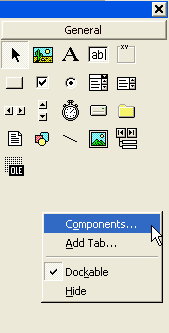
- Right-click in the toolbox and select Components from the context menu or select Components from the Project menu by pressing the keyboard shortcut CTRL+T.
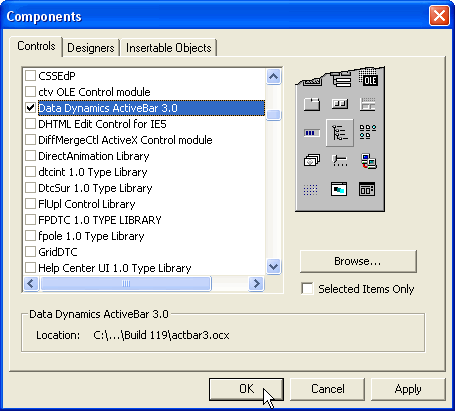
- Add the Data Dynamics ActiveBar 3.0 component by selecting the check box next to Data Dynamics ActiveBar 3.0 in the Controls list.
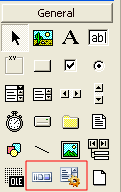
- Click OK to see the ActiveBar 3.0 ActiveX and CustomizeListbox controls appear in your toolbox.
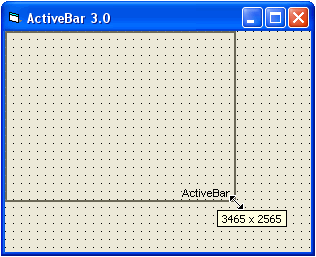
- Select the ActiveBar 3.0 control and draw it onto your form.
- Use the following code to add the ActiveBar 3.0 control to your form at run time.
 Private Sub Form_Load()
    ' Instantiate the ActiveBar control.
    Dim activebarControl As ActiveBar3LibraryCtl.ActiveBar3

    ' Set the instance of the activebarControl.
    Set activebarControl = Me.Controls.Add("Activebar3Library.ActiveBar3", "activebarControl")

    ' ActiveBar control properties.
    With activebarControl
        'light blue
        .BackColor = &H80000013
        .Visible = True
        'Aligns ActiveBar control to form for SDI applications
        .AlignToForm = True
    End With
End Sub
Note: When adding the ActiveBar control at run time in the Visual Basic IDE, open the Project Properties dialog and on the Make tab, clear the check box next to Remove information about unused ActiveX Controls.
| See Also |
Copyright © 2006 Data Dynamics, Ltd. All Rights Reserved.