In this example, we'll add tick marks to our gauge.
1. Click the ellipsis button next to the Gauges property in the Properties window. The C1Gauge.Gauges Collection Editor dialog box opens.
2. Click the ellipsis button next to Decorators. The Decorators Collection Editor opens.
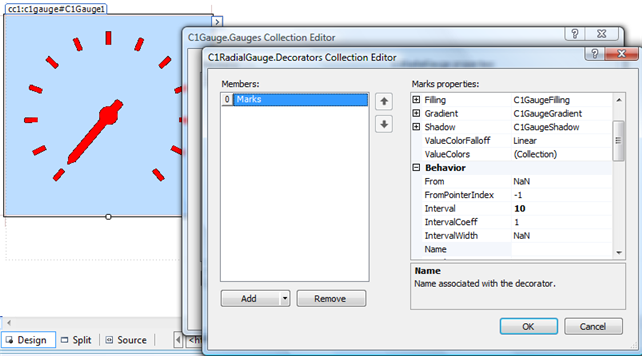
3. From the Decorators Collection Editor, drop-down the Add button and select C1GaugeMarks. These will be our major tick marks that display at every 10th interval.
4. Set the Interval property to 10. You will notice the tick marks appear.
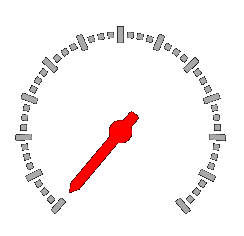
5. Under Appearance, expand Filling and set the Color property to DarkGray. Then remove the border by expanding Border and setting the LineStyle property to None.
6. To add minor tick marks, add another C1GaugeMarks item in the Decorators Collection Editor. For these, set the Interval to 2.5 so we get three minor ticks between each major mark.
7. We’ll keep these marks rectangular in shape, but let’s make them shorter by setting the Length property to 5 (to match the Width property, which is also 5).
8. Expand Filling and set the Color property to DarkGray. Then remove the border by expanding Border and setting the LineStyle property to None.
|