To add a unique template for individual toolbar items, complete the following steps:
1. Open the C1ToolBar Designer Form and add aToolBarDropDownList or ToolBarSplitButton with child toolbar items. For more information on adding toolbar items using the C1ToolBar Designer Form see Adding Child ToolBar Items.
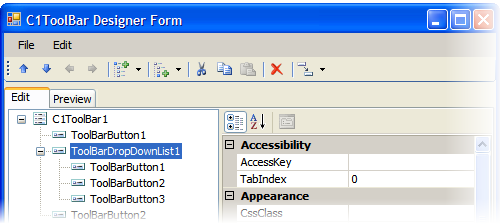
2. Click OK to save and close the C1ToolBar Designer Form dialog box.
3. Open the C1ToolBar Tasks menu from the smart tag and select Edit Templates. The C1ToolBar Tasks menu changes to Template Editing Mode.
4. Select the toolbar item you wish to add the template to. For example, select DrpDwn_1_Item_0 to add a unique template for the first child item in the ToolBarDropDownList.
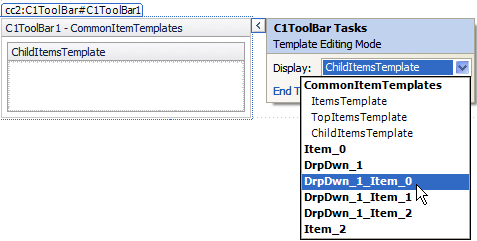
5. Add the following HTML markup code inside the ChildItem to create a FieldSet for the first child item in the ToolBarDropDownList:
<fieldset>
<legend>Suppliers:</legend>
Supplier ID: <input type="text" size="30" /><br />
Company Name: <input type="text" size="30" /><br />
Contact Name: <input type="text" size="30" /><br />
Contact Title: <input type="text" size="30" /><br />
Address: <input type="text" size="30" /><br />
City: <input type="text" size="30" /><br />
Region: <input type="text" size="30" /><br />
Postal Code: <input type="text" size="30" /><br />
Country: <input type="text" size="30" /><br />
Phone: <input type="text" size="30" /><br />
Fax: <input type="text" size="10" />
</fieldset>
6. Select the toolbar item you wish to add the template to. For example, select DrpDwn_1_Item_0 to add a unique template for the first child item in the ToolBarDropDownList.
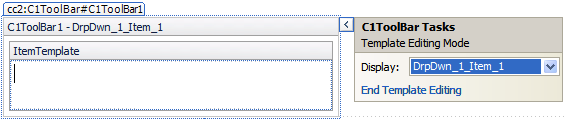
7. Add the following HTML markup code inside the ItemTemplate editor to create a FieldSet for the second child item in the ToolBarDropDownList:
<fieldset>
<legend>Shippers:</legend>
Shipper ID: <input type="text" size="30" /><br />
Company Name: <input type="text" size="30" /><br />
Phone: <input type="text" size="10" />
</fieldset>
8. Select End Template Editing from the C1ToolBar Tasks menu.
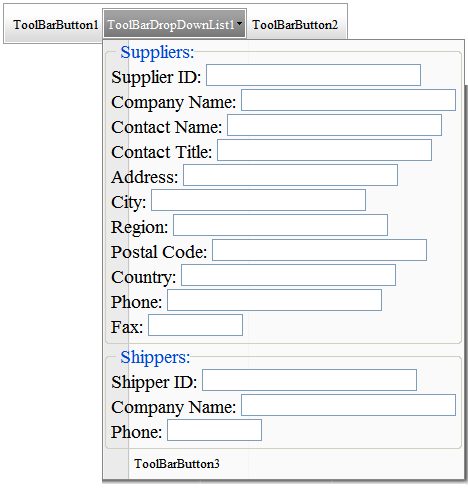
9. Run the project and notice the different field sets that appear for the first and second child toolbar items.
|