To create a menu at design time
- Open a new Visual Basic Standard EXE project and add the Data Dynamics ActiveBar 3.0 controls to the project toolbox.
- Select the ActiveBar3 control in the toolbox and draw it onto the form.
- Open the ActiveBar Designer by right-clicking the ActiveBar control in the form and selecting Properties from the context menu or by double-clicking the ellipsis button
 to the right of the Custom property in the properties list for the ActiveBar control.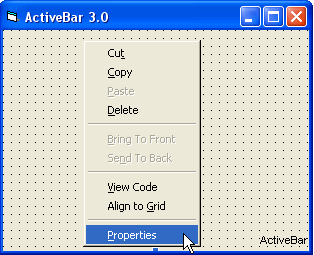
- Right-click the Categories node in the ActiveBar Designer tree view and select Insert from the context menu.
- Select the new category node and press F2 to rename it File.
- Right-click the File category and select tools from the context menu to add tools to your new menu. The tools you select appear in the File category.
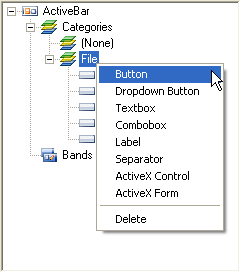
- Right-click the Bands node and select Menu Bar to add a new menu bar band. Name the new band menuBand.
- Right-click menuBand and select Button. Name the new tool fileButton.
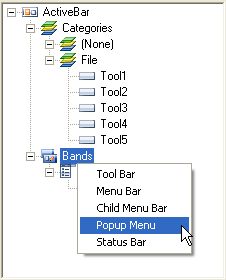
- Right-click the Bands node in the Designer and select Popup Menu from the context menu. A Popup menu icon appears in the Bands node. Name the new band fileMenu.
- Under the File category, change the Name and Caption properties for each of the new tools to match those in the image below.
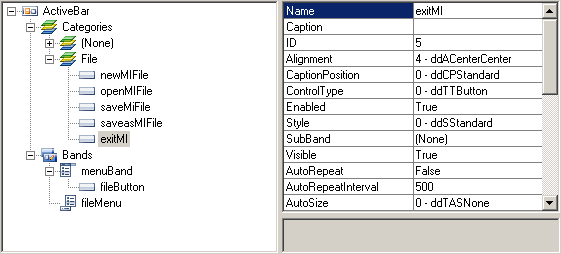
- To add an icon to a tool, double-click the tool in the category node to open the Icon Editor. Click the Open icon on the Designer toolbar to choose a bitmap file, create a new icon using the Icon Editor tools, or capture an icon using the Icon Capture tool.
- Using your mouse and the SHIFT or CTRL key, select all of the tools in your category. Drag the tools onto fileMenu in the Bands node.
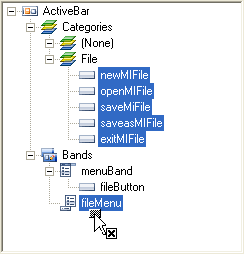
To link a menu to a tool in a band
- Expand the tools collection of menuBand and fileMenu in the Band node and select the tool you want to link to the menu.
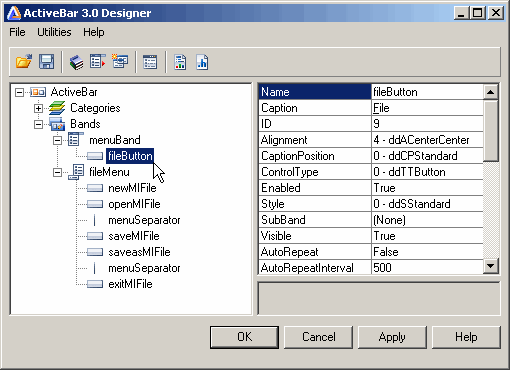
- In the Properties window of the ActiveBar Designer, choose the SubBand property and select fileMenu. Set the SubBand property for each menu button you add to menuBand.
- Right-click fileMenu, choose Separator, and drag it onto a tool to place a line above that tool.
- Click OK and run the project to see your form with a File menu containing each of the tools you added above.
| See Also |
Adding ActiveBar to a Project | Popup Menu
Copyright © 2006 Data Dynamics, Ltd. All Rights Reserved.