In the C1Gauge Tasks menu you can quickly and easily add, load, and save gauges.
To access the C1Gauge Tasks menu, click on the smart
tag ( ) in the upper
right corner of the control. This will open the C1Gauge Tasks menu which
appears like the following:
) in the upper
right corner of the control. This will open the C1Gauge Tasks menu which
appears like the following:
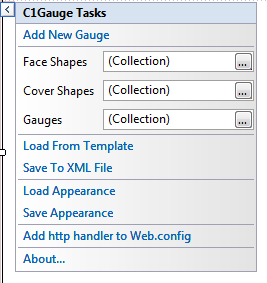
The C1Gauge Tasks menu operates as follows:
• Add New Gauge
Selecting the Add New Gauge option opens the New Gauge Gallery when you can choose a new gauge to add to the C1Gauge container control. You can also choose a template and set some options for the new gauge. For more information, see the New Gauge Gallery topic.
• FaceShapes
Clicking this option opens the FaceShapes Collection Editor.
• CoverShapes
Clicking this option opens the CoverShapes Collection Editor.
• Gauges
Clicking this option opens the Gauges Collection Editor.
• Load From Template
Selecting the Load From Template option opens the Load C1Gauge From Template dialog box where you can choose a new built-in or custom template to customize the appearance of the gauge.
• Save To XML File
Selecting the Save to XML File option opens the Save C1Gauge To XML File dialog box where you can select a location to save the gauge template.
• Load Appearance
Selecting the Load Appearance option opens the Load C1Gauge View From XML File dialog box where you can select an XML file to load.
• Save Appearance
Selecting the Save Appearance option opens the Save C1Gauge View To XML File dialog box where you can save the current gauge's appearance as an XML file.
• About C1Gauge
Selecting the About C1Gauge option opens the Save About C1Gauge dialog box which is helpful in finding the build number of the control.
• Add http handler to Web.config
Adds an http handler to the web.config file.
|