You can access the New Gauge Gallery dialog box by selecting Add New Gauge from the C1Gauge Tasks Menu. The New Gauge Gallery dialog box appears similar to the following:
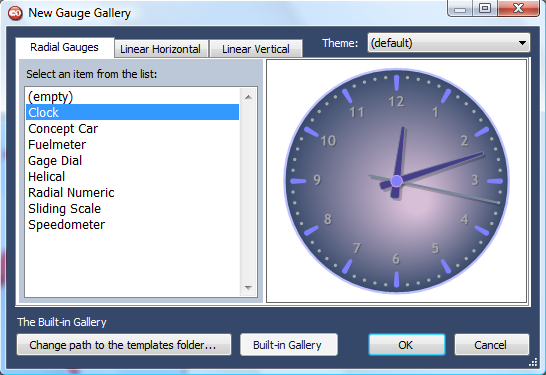
In this dialog box you can choose the initial appearance of your gauge from default or existing custom templates. The New Gauge Gallery dialog box operates as follows:
• Radial Gauges tab
Select the Radial Gauges tab to select from available radial gauges. You can also choose the (empty) option to add an unformatted C1RadialGauge item.
• Linear Horizontal tab
You can choose the (empty) option to add an unformatted C1LinearGauge item.
• Linear Vertical tab
Select the Linear Vertical tab to select from available vertical linear gauges. You can also choose the (empty) option to add an unformatted C1LinearGauge item.
• Theme drop-down box
Open the Theme drop-down box to choose a built-in theme. Choices include OfficeBlack, OfficeBlue, OfficeSilver, and Windows7. For more information, see the Gauges for ASP.NET AJAX Appearance topics.
• Change path to the templates folder button
Click the Change path to the templates folder button to navigate to a folder that contains custom template files. Once you choose a folder, templates in that folder will appear in the dialog box. You can return to the built-in themes by clicking the Built-in Gallery button.
• Built-in Gallery button
Click the Built-in Gallery button to return to the built-in template options. This button is only selectable when you are currently viewing custom templates.
• OK button
Click the OK button to save any changes or selections you have made and close the New Gauge Gallery dialog box. The gauge you added will then appear in the C1Gauge control.
• Cancel button
Click the Cancel button to cancel any changes or selections you have made and close the New Gauge Gallery dialog box.
|