The properties list resides on the right side of the ActiveBar designer and is similar in appearance and functionality to the Visual Basic properties editor. The properties list displays the properties of the selected object in the tree view. The properties are not sorted alphabetically; the most common properties appear at the top of the list. It has the following property editors.
Boolean: Used to set Boolean properties to either True or False values.
String: Used to set text values of string properties.
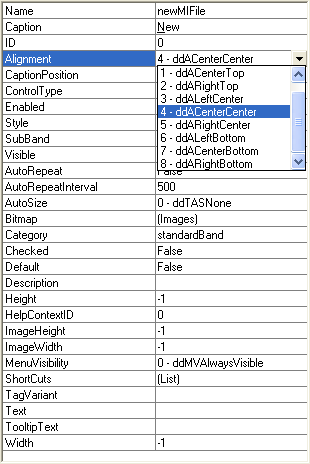
Enumeration: Used to set the value of enumerated properties.
Color: Used to set color properties to either a system color or a fixed palette color. The color palette has 16 custom color cells; you can set any of these cells to a custom color by right-clicking on the cell to display the custom color dialog.
Font: Used to set Font properties. Click the ellipsis to display the Font dialog.
Picture: Used to load picture files into picture properties. Click the ellipsis to display the Open File dialog.
Flags: Used to set bits in the Flags property. The Flags property is a collection of On and Off bits packed into a long integer. Click the drop-down arrow to display the Flags list, check or uncheck the flags, then click OK to save and close the list.
ComboBox Items list: Used to add list items into the ComboBox list. Since each line in the ComboBox Tool list is considered an item in the list, press CTRL+ENTER to add a new item. Press ENTER to save the items list.
Shortcut keys list: Used to assign a list of shortcut keys to a tool. To add a new shortcut key, select the new item using the mouse pointer or arrow-keys and press the keyboard sequence of the shortcut keys. To delete a shortcut key, select the item and press Delete. To save the list of shortcut keys, press Enter.
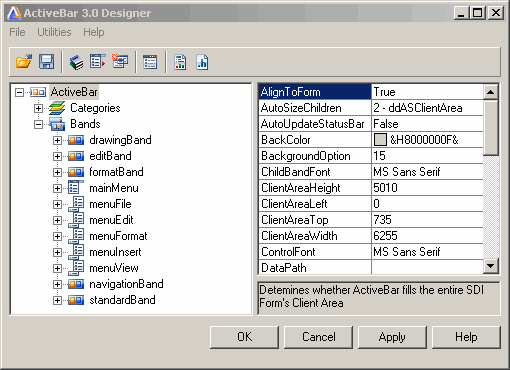
The properties list is the graphical representation of the ActiveBar object properties and property values of the selected object in the Designer tree view. Using the properties list to access object properties and property values offers you a more convenient way to control the look and response of your application controls.
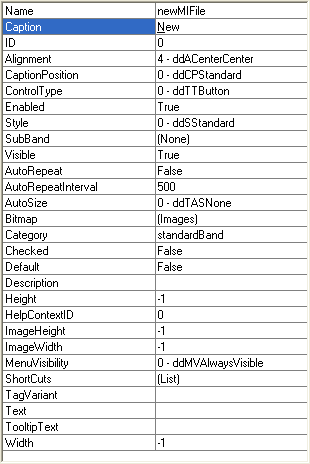
Select the property value to the right of the property name and either enter a valid value or select a value from the list.
| See Also |
Designer Tree View | ActiveBar Designer
Copyright © 2006 Data Dynamics, Ltd. All Rights Reserved.