Right-click on an ActiveBar control on a form and select Properties to open the ActiveBar 3.0 Designer. The ActiveBar Designer gives you access to ActiveBar's object architecture and properties within an application.
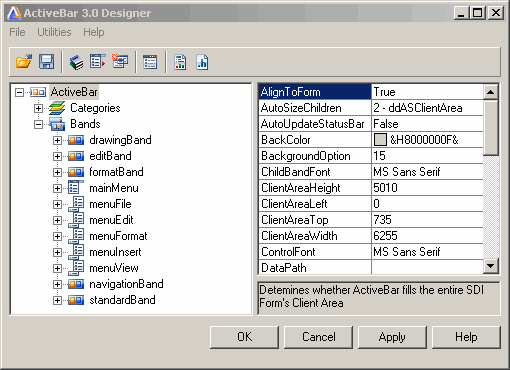
You can use the ActiveBar Designer to:
- Add and remove bands and tools from your application.
- Adjust band and tool properties.
- Create and edit icon images using the built-in Icon Editor.
- Save and load existing toolbar layouts as .tb3 files.
ActiveBar provides you with this unique designer allowing you to interactively design the bands on the form. After inserting a new band into the bands sub-tree click Apply. The ActiveBar control repaints itself on the form to display the new band. The new band is a drop target for tools. From here you can drag tools from the Categories node in the Designer tree view to the band and interactively drag and float or dock the bands to the different docking areas of the form. In addition, each tool on a band has a context menu allowing you to modify its basic properties. Any changes to the properties in the designer properties list appear on the ActiveBar control. If a tool has a SubBand property, you can drag a tool and pause over the tool to open the SubBand and drop the tool into it. After completing the design, ActiveBar updates the form to give you a preview of its run-time appearance.
| See Also |
Designer Tree View | Properties List | Setting Shortcut Keys
Copyright © 2006 Data Dynamics, Ltd. All Rights Reserved.