Review the Context menu topic in order to become familiar with how a context menu works.
This walkthrough is split up into the following activities.
- Creating a Popup menu
- Adding code to make the Popup menu a context menu
This walkthrough yields an application that resembles the following.
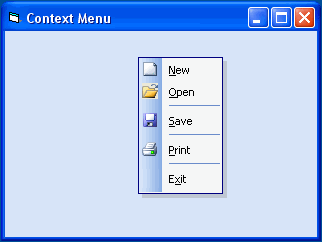
Creating a Popup menu
To create a Popup menu
- Create a new project and add the ActiveBar control to your project. (See Adding ActiveBar to a Project.)
- Right-click the ActiveBar control and select Properties to display the ActiveBar Designer.
- Right-click the Categories node in the Designer tree view and select Insert.
- Select the new category and press F2 to rename the category Context Menu.
- Add a second category named Other.
- Right click the Context Menu category and add these buttons.
Category ID Name Caption Type Description Context Menu 101 newMenuItem &New Button Creates a new document 102 openMenuItem &Open Button Opens a document. 103 saveMenuItem &Save Button Saves the active document. 104 printMenuItem &Print Button Prints the active document. 105 exitMenuItem E&xit Button Exits application. - Add an icon to each button. (See Icon Editor.)
- Right-click on the Other category and add a Separator tool. Rename the Separator tool menuSeparator and remove the default text from the Caption property.
- Right-click the Bands node, select Popup Menu, and rename the Popup band contextMenu.
- Use your mouse and the SHIFT or CTRL key to select all of the tools in the Context menu category and drag them onto contextMenu.
- Drag menuSeparator from the Other category and drop it onto tools in contextMenu to logically organize them by function.
- Click OK to return to the form.
Adding code to make the Popup menu a context menu
To add code to make the Popup menu a context menu
- In the code view of the form, select ActiveBar31 in the Object list and MouseUp in the Procedure list to create the MouseUp event.
- Add the following code to the MouseUp event to display the context menu at the current coordinates of the mouse pointer.
Private Sub ActiveBar31_MouseUp(Button As Integer, shift As Integer, x As Single, y As Single)
    If Button = vbRightButton Then
        ActiveBar31.Bands("contextMenu").PopupMenu
    End If
End Sub
- Press F5 to run the application.
- Right-click on the form to display the context menu.
| See Also |
Context Menu | Adding ActiveBar to a Project
Copyright © 2006 Data Dynamics, Ltd. All Rights Reserved.