A Multiple Document Interface application (MDI) consists of a parent window that holds the menu, toolbars, and status bar, and any number of MDI child windows. Adding the ActiveBar control to an MDI parent is much the same as adding it to an SDI application.
This walkthrough is split up into the following activities.
- Adding the ActiveBar control to an MDI form
- Adding tools to the parent form
- Creating popup menus and adding the MDI parent menu bar
- Adding MDI child menus
- Adding code to the ActiveBar ToolClick event
- Running the MDI application
This walkthrough instructs you in how to create a basic MDI application. When you have completed the walkthrough, your MDI application will resemble the following.
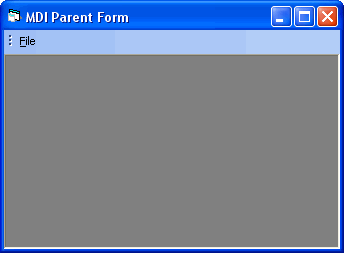
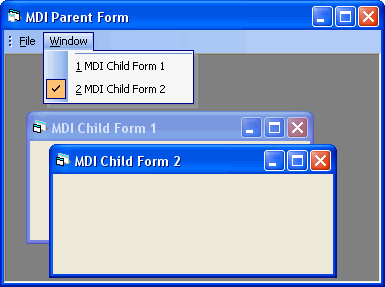
Adding the ActiveBar control to an MDI form
To add the ActiveBar control to an MDI form
- Create a new Microsoft Visual Basic 6.0 Standard EXE project.
- From the Project menu, select Add MDI Form, set its Name property to mdiparentForm, and set its Caption property to MDI Parent Form.
- Select Form1 and set its Name property to mdichildForm and its Caption property to MDI Child Form.
- In the Project Explorer, right-click the project and select Project Properties.
- On the General tab under Startup Object, select mdiparentForm and click OK.
- Select mdichildForm and set the MDIChild property to True.
- Add the ActiveBar control to mdiparentForm.
- Right-click the ActiveBar control on mdiparentForm and select Properties to open the ActiveBar Designer.
- In the ToolbarStyle property of the ActiveBar, select a look and feel for your application.
Adding tools to the parent form
To add tools to the parent form
- Open the ActiveBar designer and right-click the Categories node in the Designer tree view and choose Insert. Name the new category Commands.
- Insert a second category and name it Menu.
- Right-click the Commands category and select Button. Set the Name property to newMIFile and the Caption property to &New.
- Right-click the Menu category and add the following controls.
Control Name Caption Button fileMenu &File Button windowMenu &Window
Creating popup menus and adding the MDI parent menu bar
To create popup menus and add the MDI parent menu bar
- Right-click the Bands node and add the following bands.
Band Name Caption Menu Bar mdiparentBand MDI Parent Band Popup Menu filePopup File Menu Popup Menu windowPopup Window Menu - From the Menu category, drag fileMenu and windowMenu onto mdiparentBand.
- Right-click windowPopup and select Window List. Set the Name property to mdichildWindowList and the Caption property to Child Windows List.
- From the Commands category, drag newMIFile and drop it onto filePopup.
- Under mdiparentBand, select fileMenu and set its SubBand property to filePopup.
- Select windowMenu and set its SubBand property to windowPopup.
- Click Apply to see the bar and menus appear on mdiparentForm.
Adding MDI child menus
To add MDI child menus
- Right-click the Bands node in the Designer tree view, select Child Menu Bar. Set the Name property to mdichildBand and the Caption property to MDI Child Band.
- Using your mouse and the SHIFT or CTRL key, select fileMenu and windowMenu in the Menu category and drag them onto mdichildBand.
- Under mdichildBand, select fileMenu and set the SubBand property to filePopup.
- Select windowMenu set the SubBand property to windowPopup.
- Click OK to close the Designer.
- Go to the code view of mdichildForm and add the following code to the Form_Load event to attach the child menu.
' The mdichildForm Load Event.
Private Sub Form_Load()
    mdiparentForm.ActiveBar31.RegisterChildMenu Me.hWnd, "mdichildBand"
    counter = counter + 1
    Me.Caption = "MDI Child Form " & counter
End Sub
Adding code to the ActiveBar ToolClick event
To add code to the ActiveBar ToolClick event
- In the mdiparentForm, double-click the ActiveBar control to go to the code view and create the ToolClick event.
- Add the following code to the event to show a new MDI child form and set its name when the newMIFile button is clicked.
Dim counter As Integer
Private Sub ActiveBar31_ToolClick(ByVal Tool As ActiveBar3LibraryCtl.Tool)
    If Tool.Name = "newMIFile" Then
        counter = counter + 1
        Dim newMDIChild As New MDIChildForm
        newMDIChild.Caption = "MDI Child Form " & counter
        newMDIChild.Show
    End If
End Sub
- From the Object drop-down list, select MDIForm to create the MDIForm_Load event and add the following code to reset the counter each time the parent form is loaded.
Private Sub MDIForm_Load()
    counter = 0
End Sub
Running the MDI application
To run the MDI application
- Click the Save button in Visual Studio and press F5 to run the application.
- From the File menu, select New to open a new MDI child window inside the MDI parent window.
- Click the Window menu to view the list of open child windows.
| See Also |
Adding ActiveBar to a Project | Walkthrough: Single Document Interface
Copyright © 2006 Data Dynamics, Ltd. All Rights Reserved.