The ActiveBar Designer toolbar resides at the top of the Designer dialog.
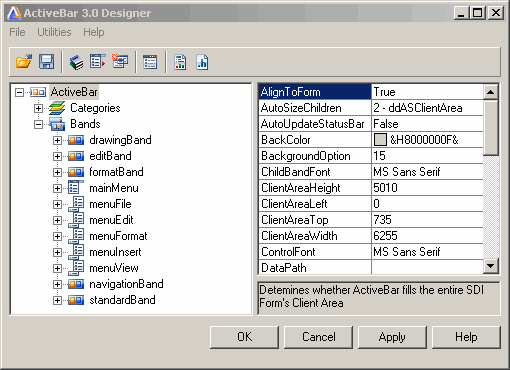
The Designer toolbar provides you with one-click access to the key commands you need to access and manipulate the ActiveBar components in applications.

The Designer toolbar contains icons for the following commands.
- Open: Opens ActiveBar 3.0 object layouts saved in a .tb3 file format.
- Save: Saves ActiveBar 3.0 object layouts in a .tb3 file format.
- Tool Library: Displays a second Designer dialog to create an ActiveBar object library.
- Menu Grab: Minimizes the Designer dialog and displays the menu grab cursor for you to capture menus from other applications and use them in your ActiveBar 3.0 project.
- Create select case statement and copy to clipboard: Generates a case statement for all of the tools listed in the tree view and then automatically copies the statement to the clipboard so you can paste it into your project code.
- Options: Access the Designer Options dialog to change current Designer settings.
- Designer Report: Creates an ActiveBar project report listing the Tool name, Band name, Category, and Tool ID of the tools in your project.
- Header File: Generates a header file for storing layouts that you can share amongst multiple modules in C++.
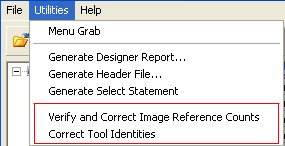
The Utilities menu also contains two troubleshooting commands.
- Verify and Correct Image Reference Counts: Internally corrects the layout so that icon images display correctly. Use this command if images appear black in an application.
- Correct Tool Identities: Internally corrects an application layout after copying the incorrect tool. This error can occur after dragging and dropping a tool from a category to a band or menu.
| See Also |
Menu Capture | Layouts | Layout Documentation | Tool Libraries
Copyright © 2006 Data Dynamics, Ltd. All Rights Reserved.